1. Home
  2. Event Manager

Run the whole event from one guest list.

Invitations, tickets, table seating, check-in at the door and the money you raise, for fundraising dinners, galas and community events. Every step works from the same list, so the door, the seating chart and the funds total always agree.

  • Invitations and email RSVPs
  • Tickets with QR codes
  • Seating and check-in
Event ManagerPublic ticket page
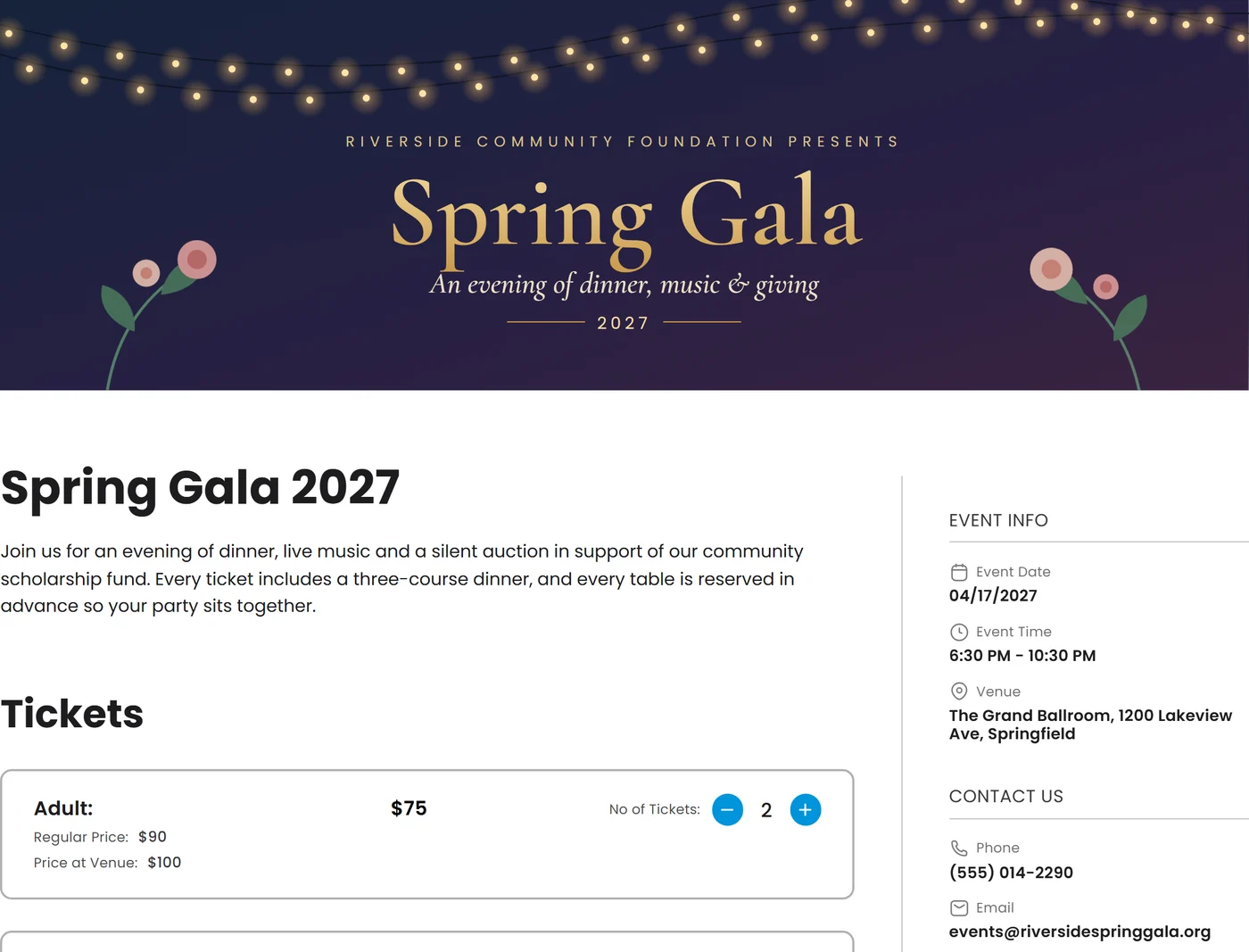
An Event Manager public ticket page for the Spring Gala 2027: the event banner, the date, time and venue, a description of the evening, and ticket types with prices and quantity buttons. Screenshot slotevents/ev-09-ticket-purchase.png
Your banner, your ticket types
The public ticket page your guests buy from, set up for a fictional gala.

The event, step by step.

Every gala goes through the same five steps. Event Manager keeps one guest list underneath all of them, so a change at one step is already there at the next.

Invite your guests, and let them answer from the email.

Weeks before

Send the invitation from Event Manager. Guests reply yes or no straight from the email, and the answer lands on their record along with where it came from.

  • Invitations by email to your contacts and their families
  • RSVP from the email, with the source of every answer recorded
  • Guests kept apart from family for each event, so a plus-one never becomes a relative
  • Volunteers and childcare requests noted on each attendee
  • Filters and CSV export on the attendee list
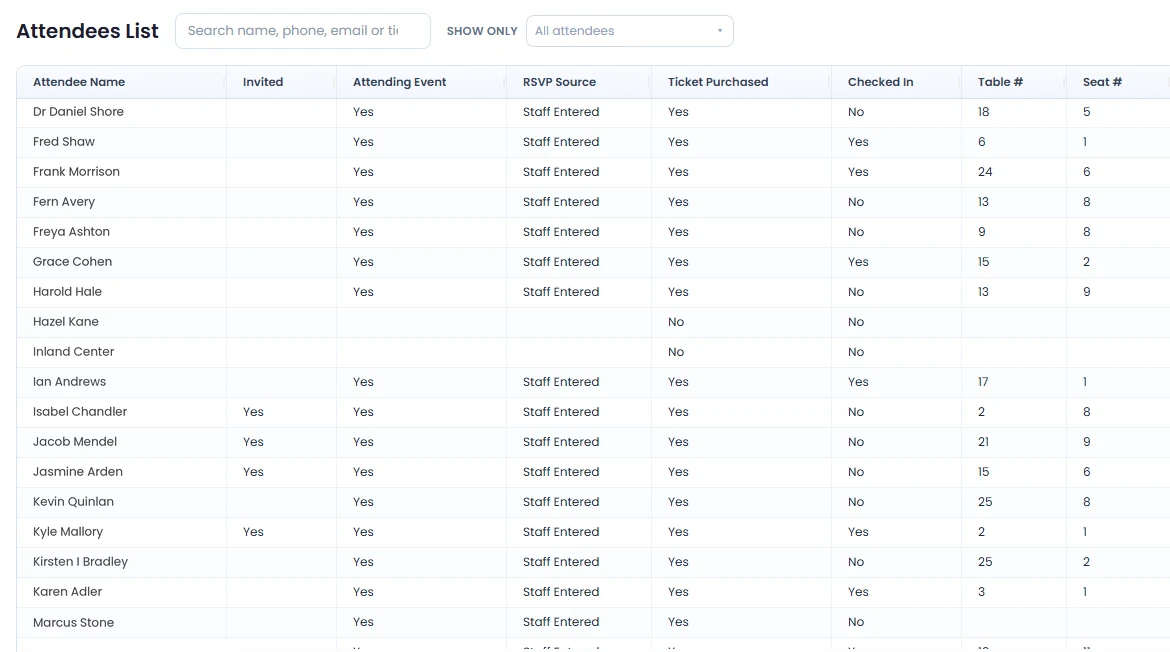
Event ManagerAttendees List
The Event Manager attendee list: each attendee with whether they were invited, whether they are attending, where the RSVP came from, whether they bought a ticket, whether they have checked in, and their table and seat. Screenshot slotevents/ev-06-attendees.png
Who was invited, who is coming, and where each answer came from. Guest names are samples.

Sell tickets online, and send each one to the guest holding it.

As tickets sell

Guests buy from your event's public ticket page on any phone. Every ticket has its own number and QR code, and goes to the guest who will use it, not only to the person who paid.

  • A public ticket page with your banner, ticket types and prices
  • Online payment and a receipt for the buyer
  • One ticket per holder, emailed with its QR code
  • Orders kept together, so a party that bought together stays together
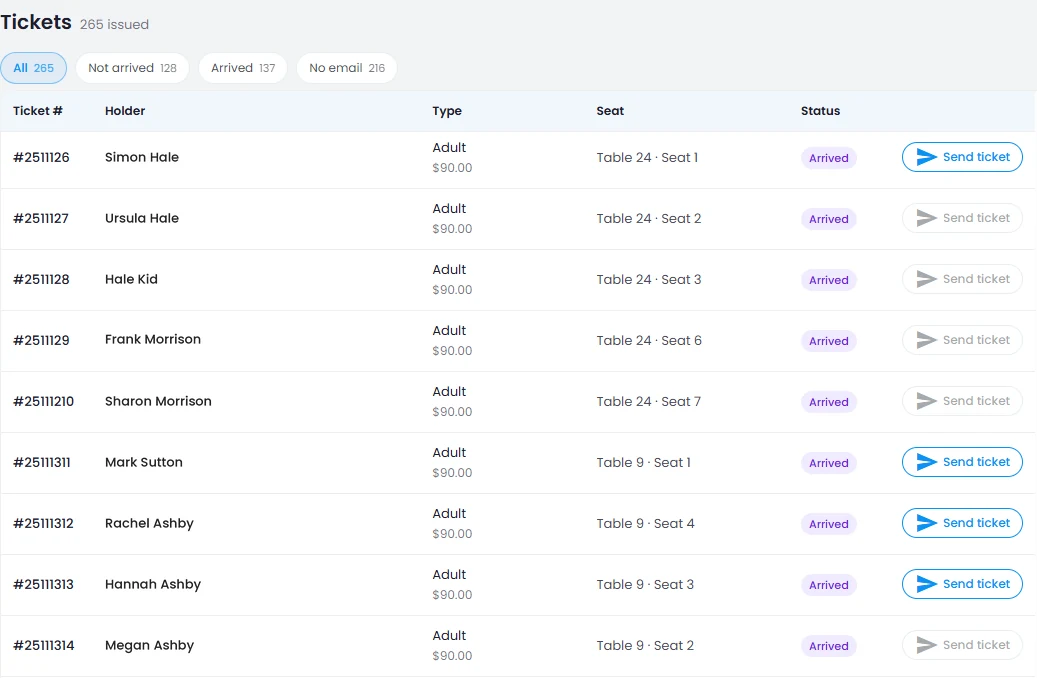
  • Quick filters for tickets not yet arrived, arrived, or missing an email
Event ManagerTickets
The Event Manager Tickets tab: every ticket issued with its number, holder, ticket type and price, table and seat, an Arrived status, and a Send ticket button on each row. Screenshot slotevents/ev-07-tickets.png
Every ticket with its holder and seat, and a Send ticket button on each. Names are samples.

Seat every party on a floor plan of the real room.

The week of the event

Lay the tables out in the shape of your hall, then seat parties at them. Reserve a table for a sponsor and the host takes seat one, with their party seated beside them.

  • A drag-and-drop floor plan sized to your room, with the stage and entrance
  • Reserved tables and seats for sponsors, hosts and guests of honor
  • Parties seated together automatically when a guest of a reserved table says yes
  • Move or swap guests and whole tables in one step
  • Seating charts and table cards ready to print
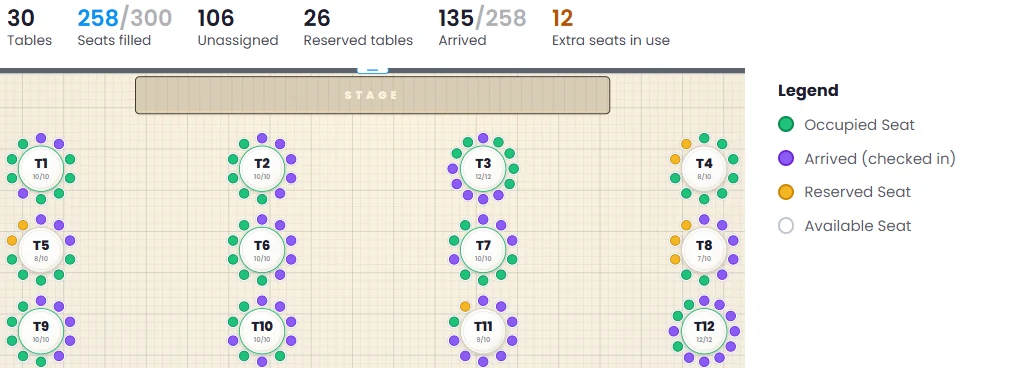
Event ManagerSeat Assignment / Floor
The Event Manager floor plan during an event: tables in rows in front of the stage, each seat coloured green when taken, violet when the guest has checked in and amber when reserved, under counts of tables, seats filled, unassigned guests, reserved tables and arrivals. Screenshot slotevents/ev-02-floor-plan.png
The floor plan as guests arrive. Violet seats have checked in.

Check guests in at the door, a whole party at a time.

At the door

Search by name, phone, email or ticket number, or scan the QR code on the ticket. One tap checks in the guest's whole party, with every seat right there to point them to.

  • Search by name, phone, email, ticket number or ticket type
  • Scan the QR code on a ticket to open that guest and their party
  • A whole party at once, with Undo for a mistap
  • Arrival counts that update live on every screen at the door
  • Walk-ins registered on the spot
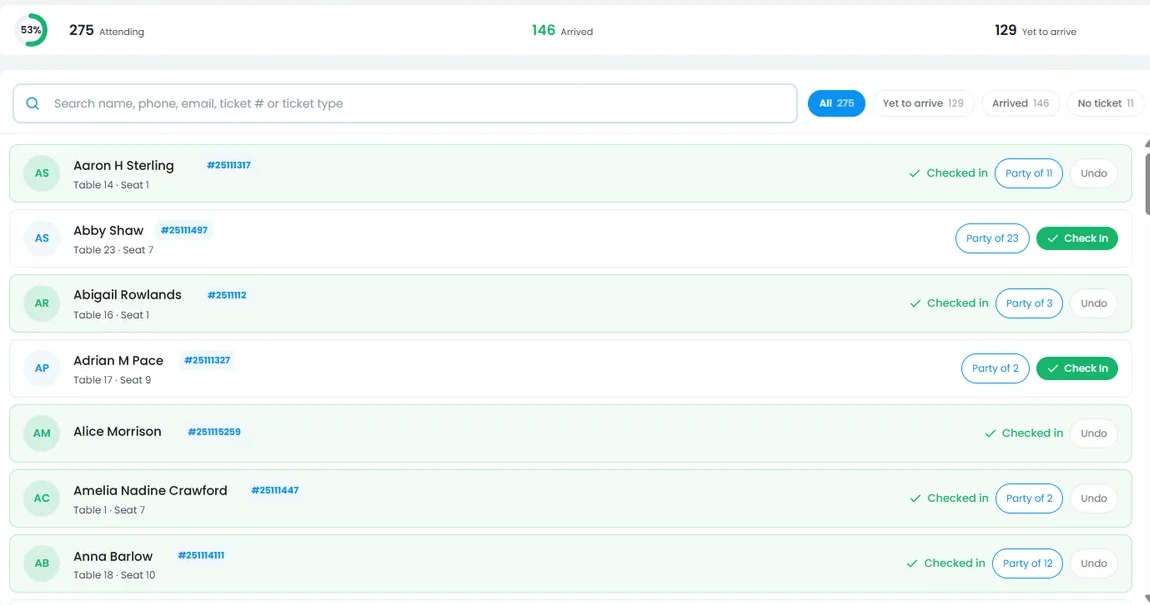
Event ManagerCheck-In
The Event Manager check-in screen: attending, arrived and yet-to-arrive counts, a search by name, phone, email or ticket number, and each guest with their ticket number, table and seat, party size, and a Check in or Undo button. Screenshot slotevents/ev-04-checkin.png
Check-in on the night. Guest names are samples.

See what the night raised, and how it compares with other years.

During the appeal, and after

Record payments by type, take pledges during the live appeal from a full-screen kiosk, and compare every year on one chart, including the years before you used Event Manager.

  • Funds collected against the goal you set for the event
  • Payments by type: tickets, credit card, check, cash, pledge and employer match
  • A kiosk screen for the live appeal, with quick-add amounts
  • Year over year, with earlier years typed in by hand and drawn hollow
  • A donation form for gifts that come in outside the event
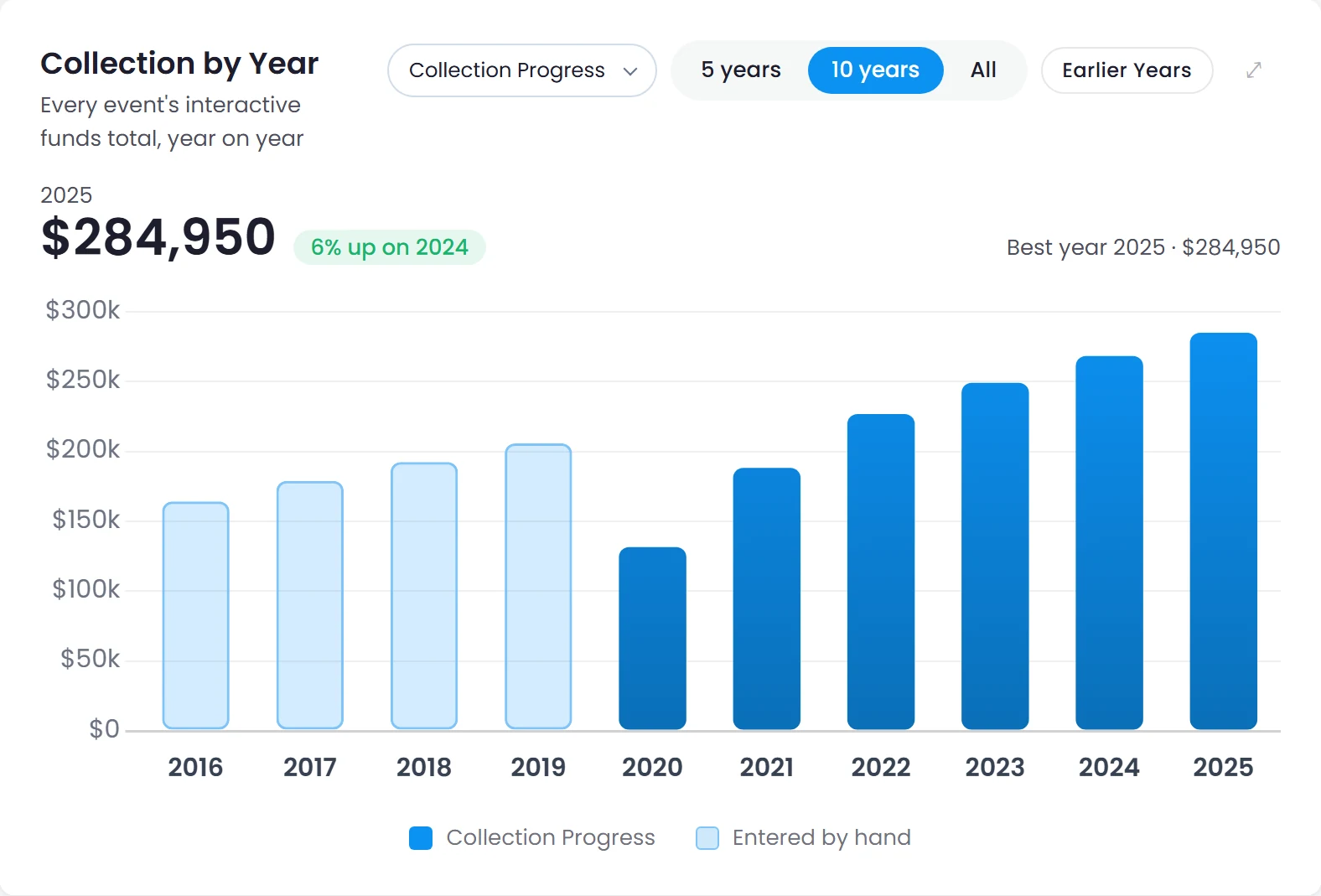
Event ManagerSummary / Collection by Year
The Collection by Year chart in Event Manager: one bar per year for ten years, the latest year's total with its change on the year before, and the four earliest years drawn as hollow bars because they were entered by hand. Screenshot slotevents/ev-08-funds-yoy.png
Ten years of collections for a fictional organization. Hollow bars were entered by hand.

The rest of what an event team needs.

The small things that decide whether the night runs smoothly, already in the product.

A live summary

Invited, registered, attending and checked-in counts sit at the top of every tab and update as the door checks people in.

Families and guests

Register a family in one go, add an existing contact as a guest, or remove a guest without touching the family's record.

Volunteers

Pick volunteers from your contacts and see them on the attendee list beside everyone else.

Printing

Seating charts, table cards and tickets, laid out and ready to print for the welcome table.

Your guest list, next year

Every attendee is a contact record, so next year's invitation list is already there, with who came and where they sat.

Questions event teams ask.

Something else on your mind? Ask us directly.

Do guests need an account to buy tickets or RSVP?

No. Guests buy from your event's public ticket page and answer the invitation straight from the email.

Can staff check guests in from a phone or tablet?

Yes. The door team can check guests in from a laptop, tablet or phone, by search or by scanning the QR code on the ticket. Arrival counts update live on every device.

Can we bring in totals from years before we used Event Manager?

Yes. Type the earlier years into the year-over-year chart. They are drawn as hollow bars, so nobody mistakes a figure from an old spreadsheet for one the system measured.

We run several events a year. Does that work?

Yes. Each event has its own guest list, tickets, seating and funds. The year-over-year chart adds up every event in a year, so you can compare whole years.

Is there AI in Event Manager?

No. Event Manager is plain, dependable software. The automatic parts are rules you can see, like seating a party next to its host or sending each ticket to its holder.

How does Event Manager relate to CTeck?

Event Manager is its own product, built by the team behind CTeck Connected Campus. Schools already on CTeck can run their events in it alongside the rest of the platform.

See your next event set up on a 30-minute call.

Bring your guest list and a picture of your room. We'll walk through invitations, tickets, seating and check-in for an event like yours.

On the call

  1. 1How your events run today, from invitation to the door
  2. 2Your room on the floor plan, and how parties get seated
  3. 3Check-in at the door, by search and by QR code
  4. 4Bringing in last year's guests and totals